
App tour

What you see and can do in the app once your VenGuard is installed, with pictures. The orange rings and numbers show where to tap.

Pre-ordered? You do not need the app yet. The app works with an installed VenGuard. On delivery and installation day we help you install it and add your device. Until then, this tour shows what you will get.

Already have your VenGuard installed?

1Install the app

The app is for Android for now. Until it is on the Play Store, you get it straight from our website.

  1. On your phone, tap the button below. The file (VenGuard.apk) downloads.
  2. When it has downloaded, open the file and tap Install. If the phone asks, allow this browser to install apps.
  3. Samsung phones: if the install is blocked, go to Settings → Security and privacy → Auto Blocker and turn it off for the install, then on again.
  4. If Google Play Protect warns you, tap More details → Install anyway.
Download for Android

2Create your account

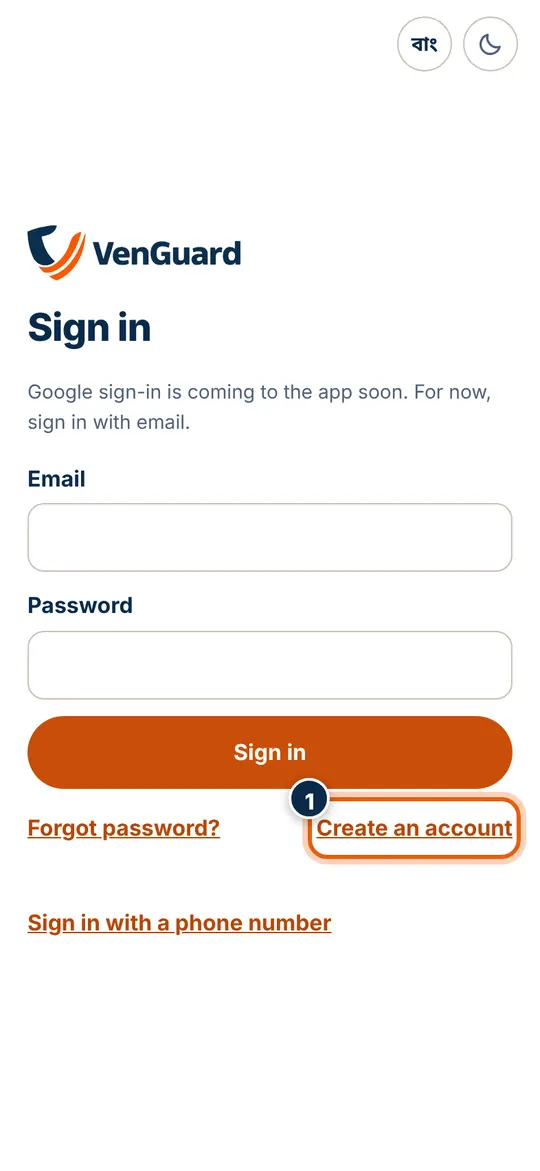
When you open the app you see the VenGuard logo, then the sign-in page.

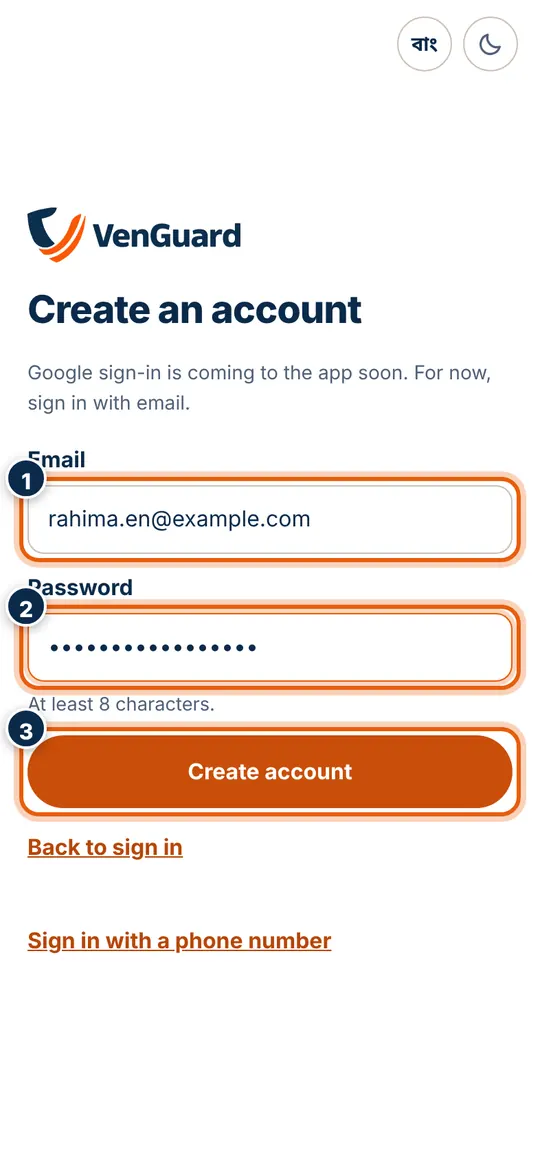
  1. Tap Create an account (first picture, 1).
  2. Type your email (second picture, 1).
  3. Choose a password of at least 8 characters (2).
  4. Tap Create account (3). Next time, sign in with the same email and password.

Forgot your password? Tap Forgot password? on the sign-in page; a link to set a new one arrives by email.

Sign-in page with Create an account marked
Create an account: email, password and Create account marked

3Your device ID and sticker code

Two things are printed on the sticker of every VenGuard and on its box:

  • Device ID: starts with VG-, for example VG-0001A3
  • Sticker code: 12 letters and numbers, for example K7Q2M9XW4TPA

Keep the code to yourself: anyone with both the ID and the code can add the device to their app. Keep the box.

4Add your VenGuard

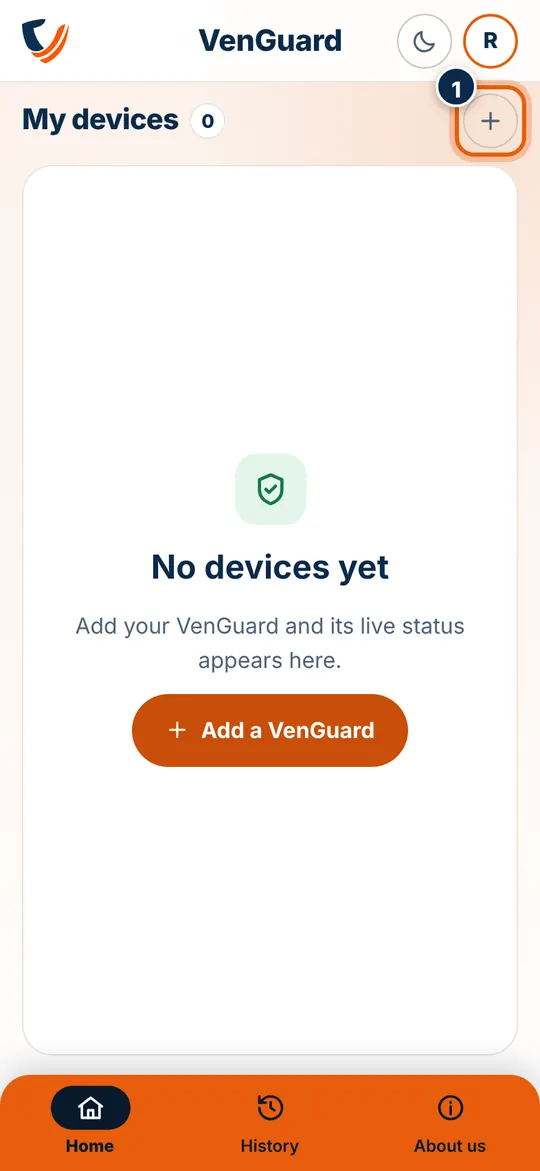
  1. On Home, tap + at the top right (first picture, 1).
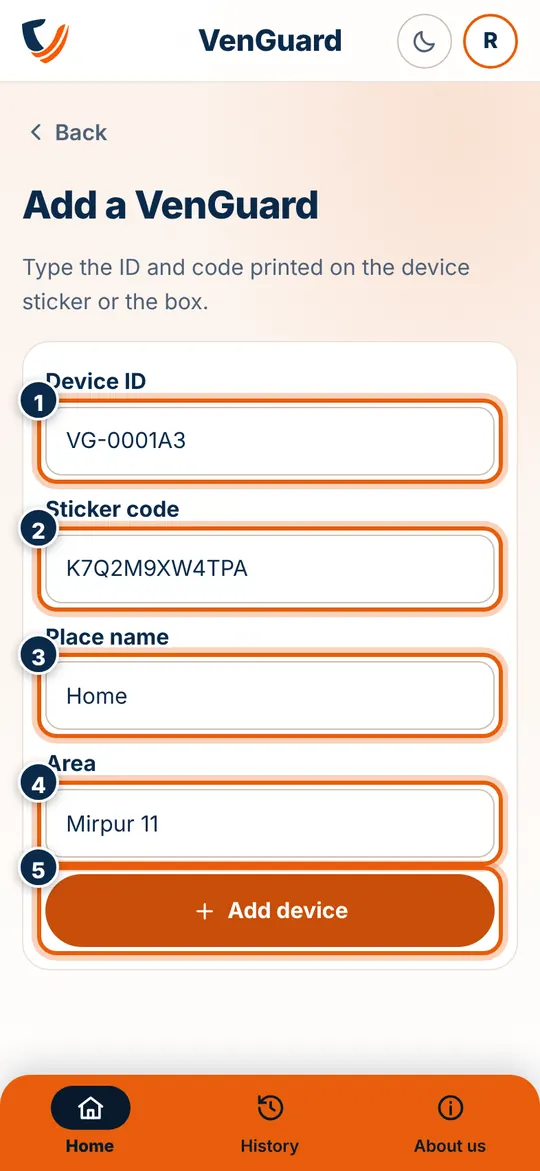
  2. Type the device ID (second picture, 1).
  3. Type the sticker code (2). Capitals, spaces or dashes don't matter.
  4. Give the place a name, such as Home or Mother's flat (3). This is how you tell your devices apart.
  5. Type the area, such as Mirpur 11 (4).
  6. Tap Add device (5). The device's screen opens.

If the ID or code does not match, the app tells you; check the sticker again.

Home of a new account with the + button marked
Add a VenGuard: device ID, sticker code, place name, area and Add device marked

5The Home screen

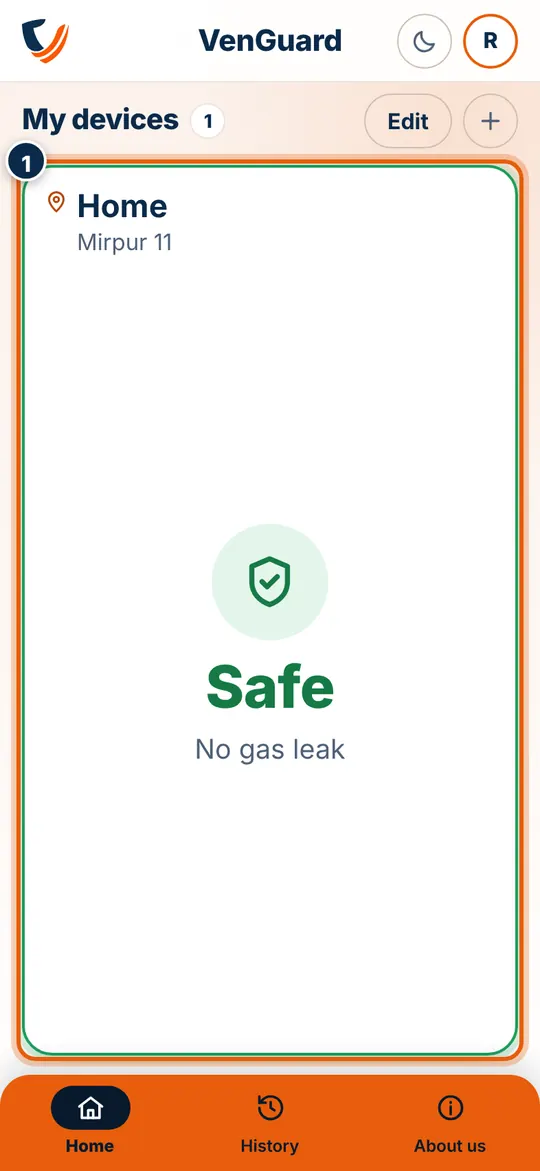
Each device has a panel (1): its place, area and how it is right now. The colour around the panel shows the state:

  • Green: Safe, no gas leak
  • Yellow: Look at it: high gas being checked, valve closed, or battery low
  • Red: Gas leak
  • Grey dashed: The device is not online

With one device the panel fills the screen; up to four show at once, and you scroll for more. Tap a panel to open that device.

Home with one safe device

6A device's screen

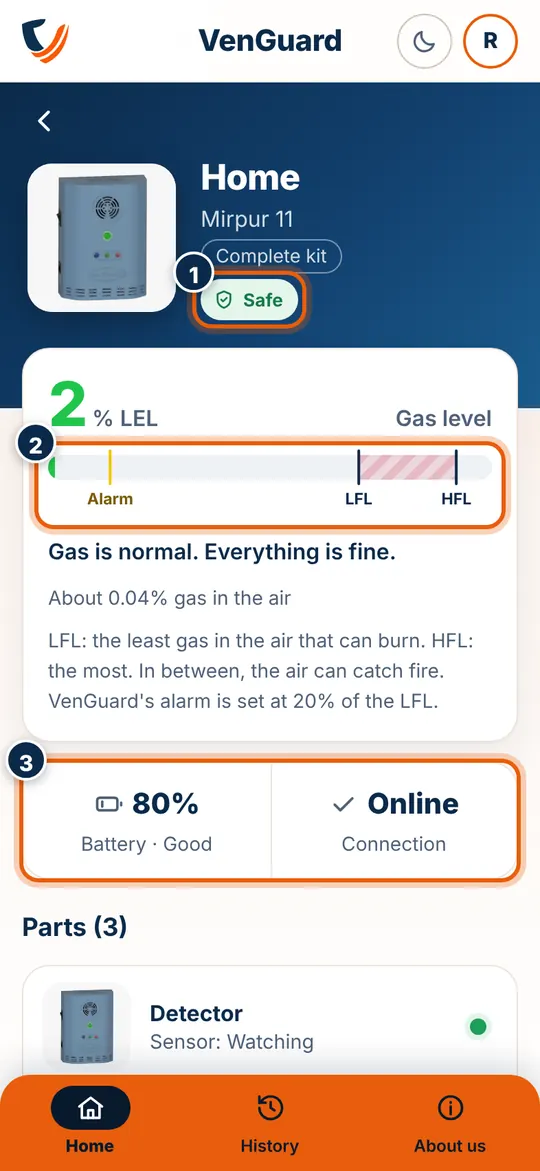
  1. Its state right now (first picture, 1).
  2. The gas bar (2): it turns from green to yellow, then red as gas rises. The alarm level, LFL and HFL are marked; the LFL is the least gas in the air that can burn.
  3. Battery and connection (3).
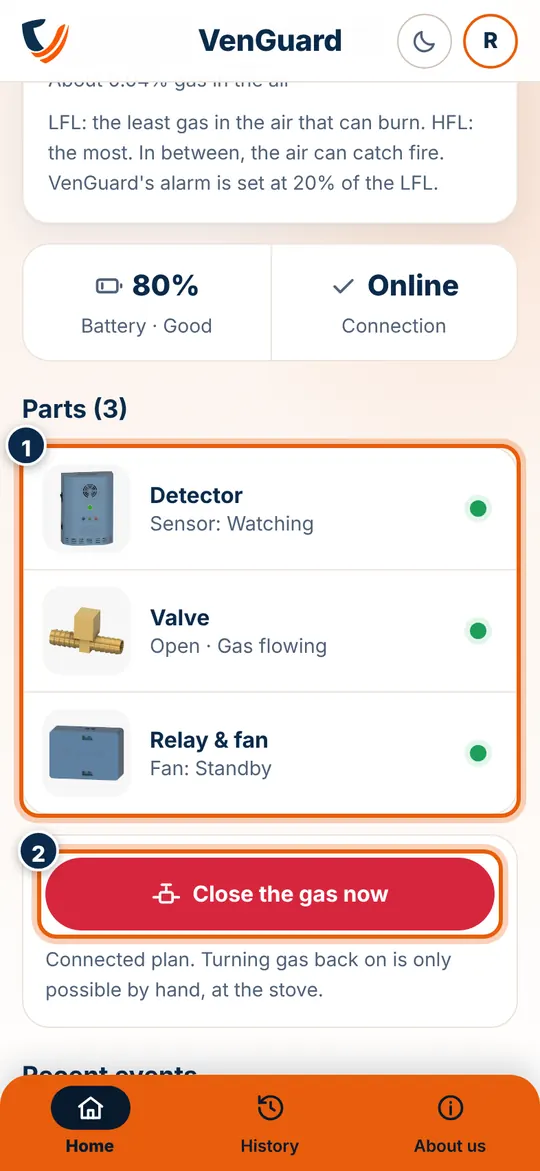
  4. The parts: detector, valve and relay, each with its state (second picture, 1).
  5. Close the gas now (2): asks the valve to close from wherever you are, on the Connected plan. The app tells you when the device confirms. Turning gas back on is only possible by hand at the stove, never from the app.
Device screen: state, gas bar, battery and connection marked
Parts and Close the gas now marked

7If there is a leak

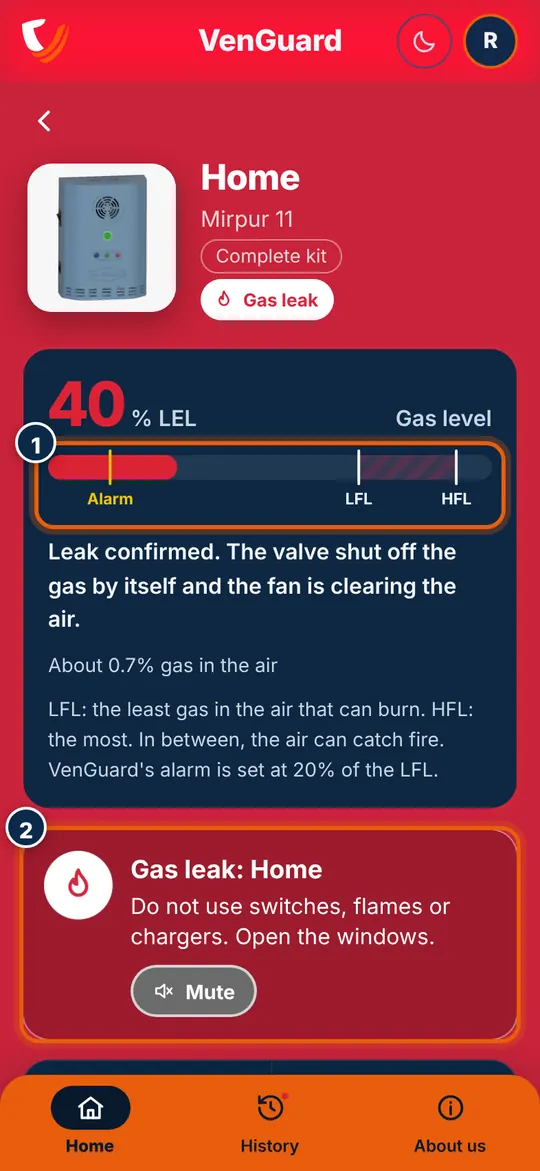
VenGuard is designed to close the valve and start the exhaust fan by itself when it confirms a leak. In the app:

  1. The whole app turns red, the alarm sound and vibration keep going, and that device's screen opens by itself. Watch the gas bar come down as the air clears (first picture, 1).
  2. Follow the safety advice: no switches, flames or chargers, open the windows. Mute stops only the sound and vibration (2).
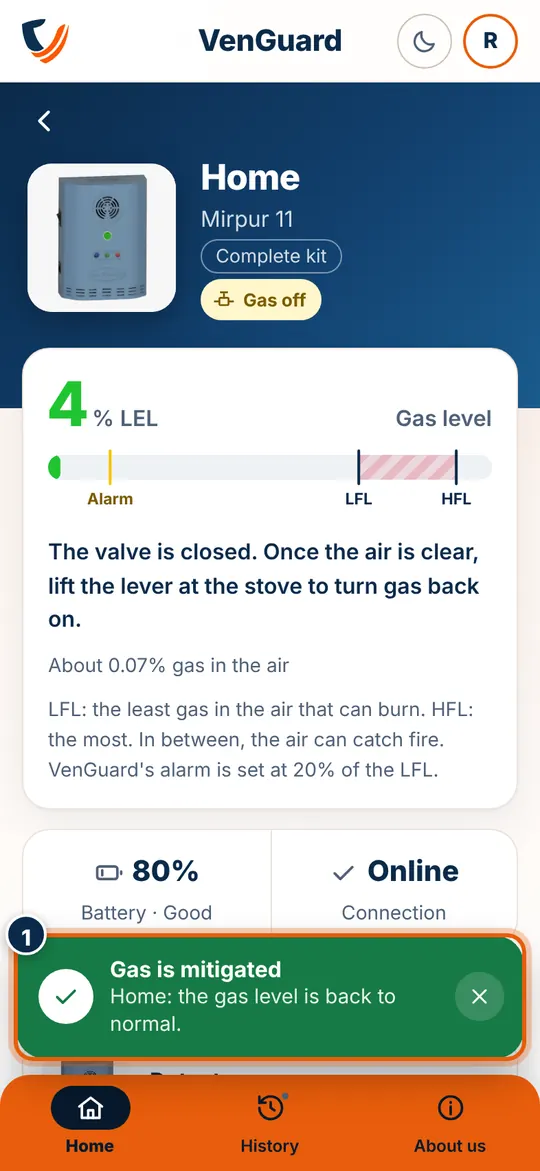
  3. When the air is back to normal, the red goes and Gas is mitigated shows, also as a phone notification (second picture, 1).
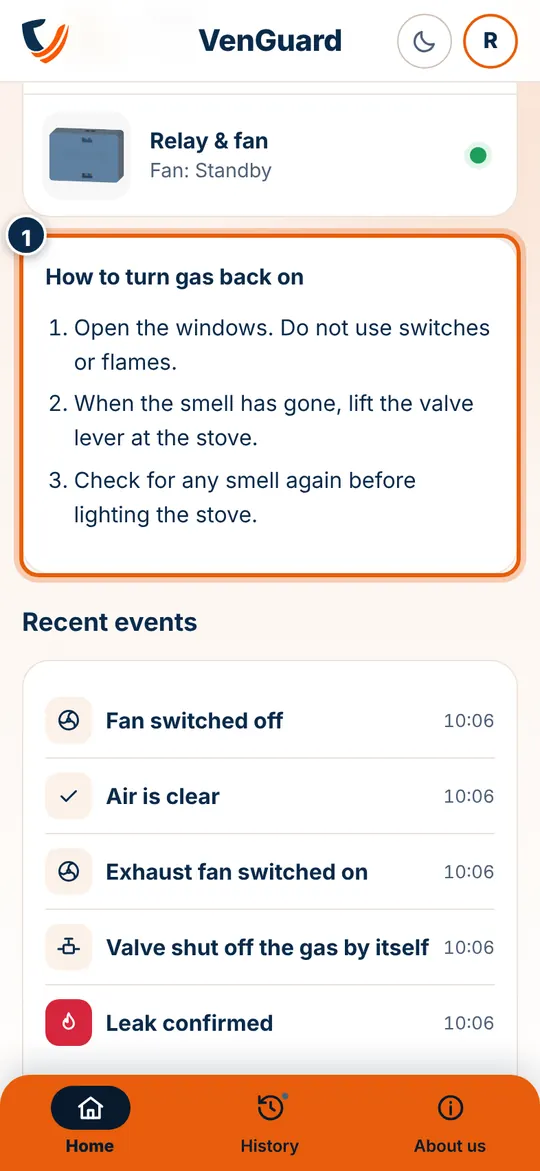
  4. The valve stays closed. When the smell has gone, lift the valve lever at the stove to turn gas back on; the steps are on the device's screen (third picture, 1).

Your phone alerts you while the VenGuard app is open or running in the background. The detector also sounds its own alarm in the kitchen. If you smell gas: turn off the regulator, open doors and windows, no switches or flames, go outside and call 102 or 999.

The red app during a leak: gas bar and warning marked
The Gas is mitigated message
How to turn gas back on: the steps marked

8History

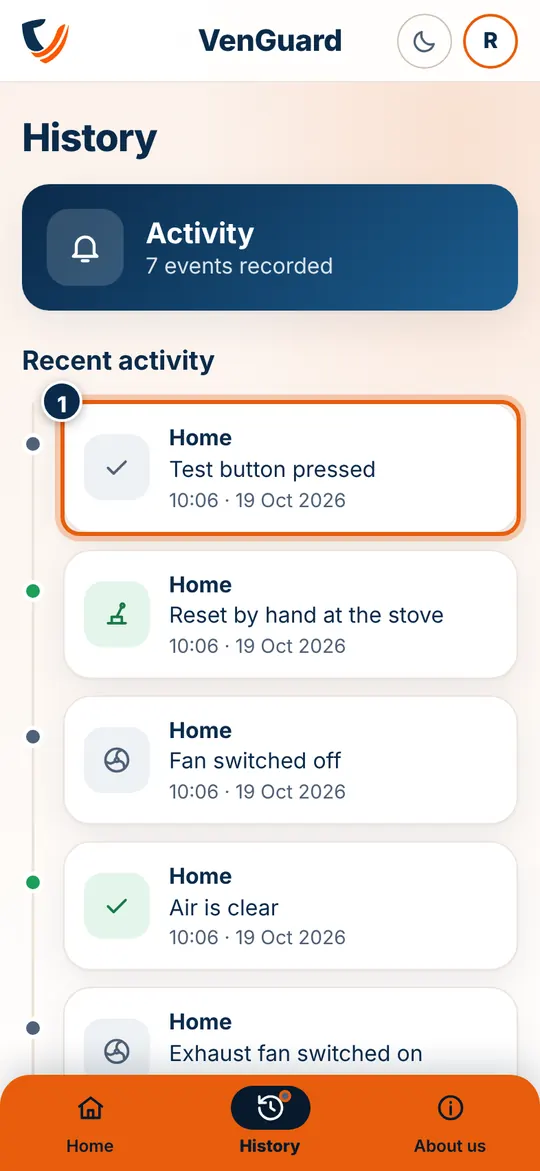
Tap History in the bottom bar. Each card says which device and what happened, with the time and date (1). A red dot is a leak, yellow something to look at, green means it is over. Tap a card to open that device.

The History page

9Remove a device

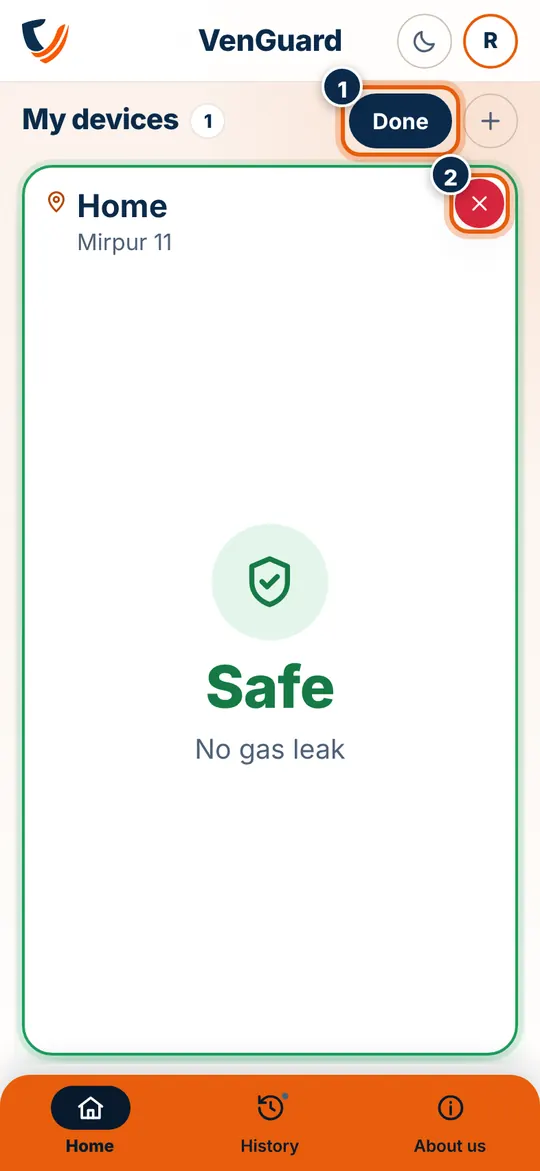
  1. On Home, tap Edit (first picture, 1).
  2. Tap the red ✕ on the device to remove (2).
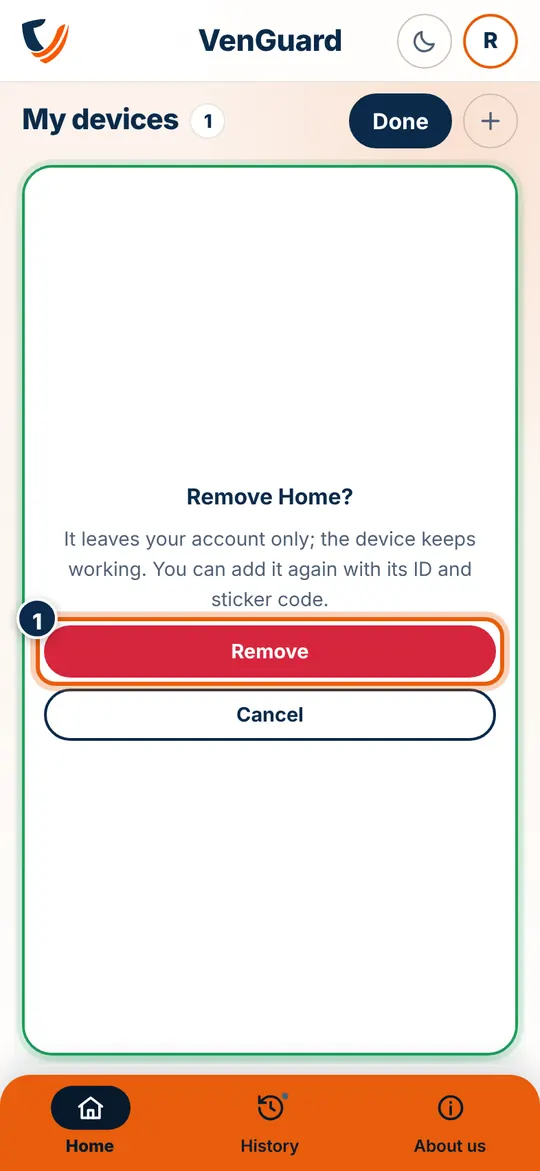
  3. Tap Remove (second picture, 1). It leaves your account only; the device keeps working and can be added again with its ID and sticker code. Tap Done when you have finished.
Edit and the red ✕ marked
The Remove question with Remove marked

10Profile and settings

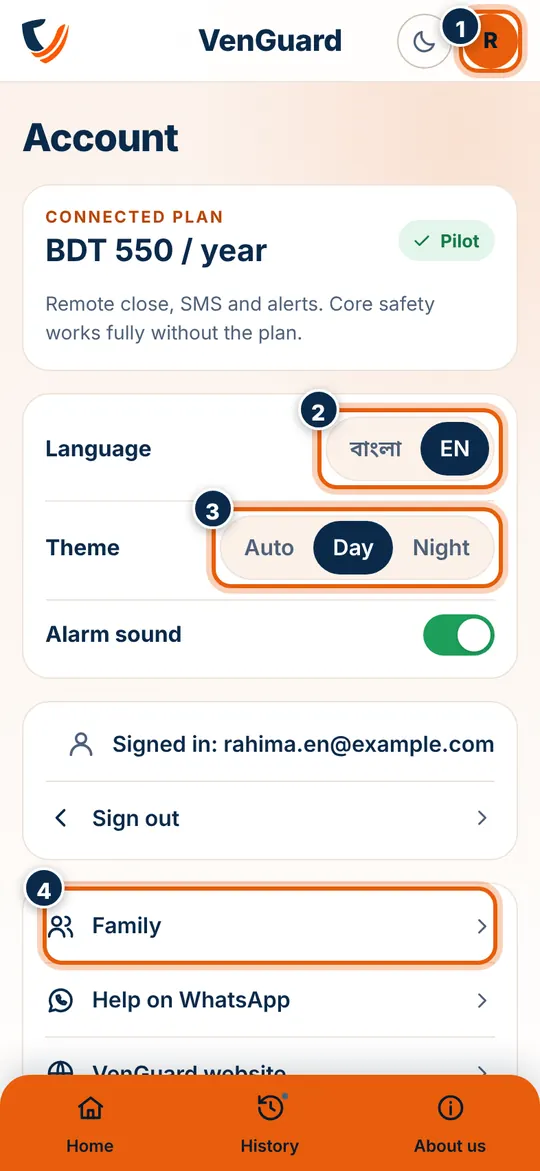
  1. Tap the round button at the top right (first picture, 1). The moon/sun button next to it switches Day and Night.
  2. Language: Bangla or English (2).
  3. Theme: Auto (like the phone), Day or Night (3). Below it, keep the alarm sound and notifications on.
  4. Family: add your family's numbers (4). Once SMS alerts start (coming soon), they get an SMS about a leak. Until then, they can install the app and add the same device too.
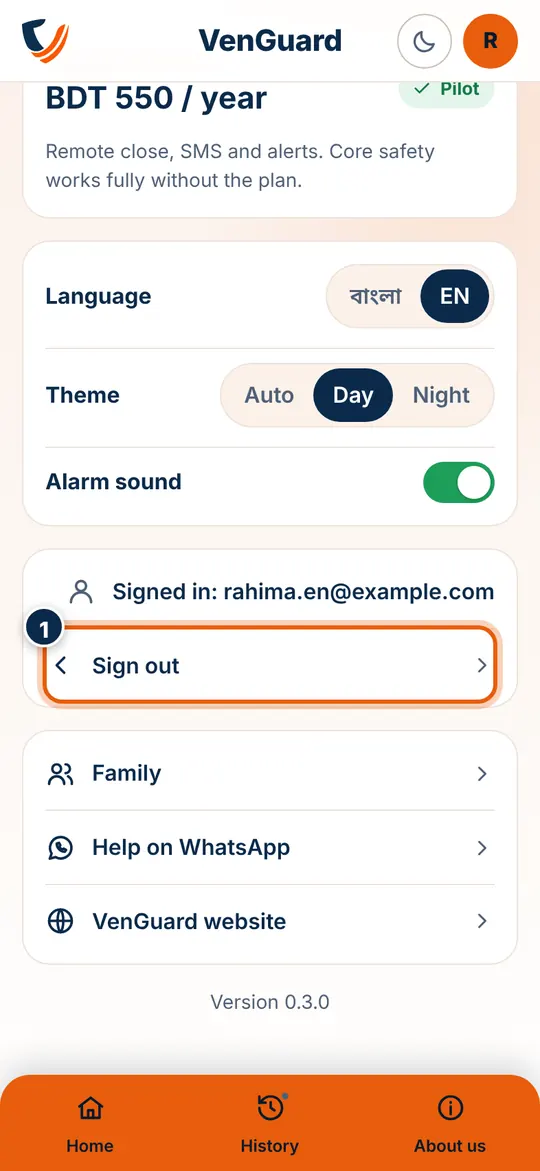
  5. Sign out (second picture, 1). Sign in with the same email and your devices are back.
Account page: language, theme and family marked
Sign out marked

11Updates and help

  • The app updates itself: close it and open it again, and the new version is there. The version number is at the bottom of Profile.
  • If it ever asks you to install the new version, tap Download, open the file and tap Update. Your settings stay.
  • A message from the VenGuard team may show at the top of the app now and then; ✕ closes it.

Get help on WhatsApp

Pre-order